
How to add new products
-
Login your opencart admin
-
Go to Catalog -> Products -> Add New

-
Now you will see seven tabs (General, Data, Links, Attribute, Option, Discount, Special, Image, Reward Points, and Design). Be sure to fill in the Product Name , Meta Tags Title - required fields - on the first tab.
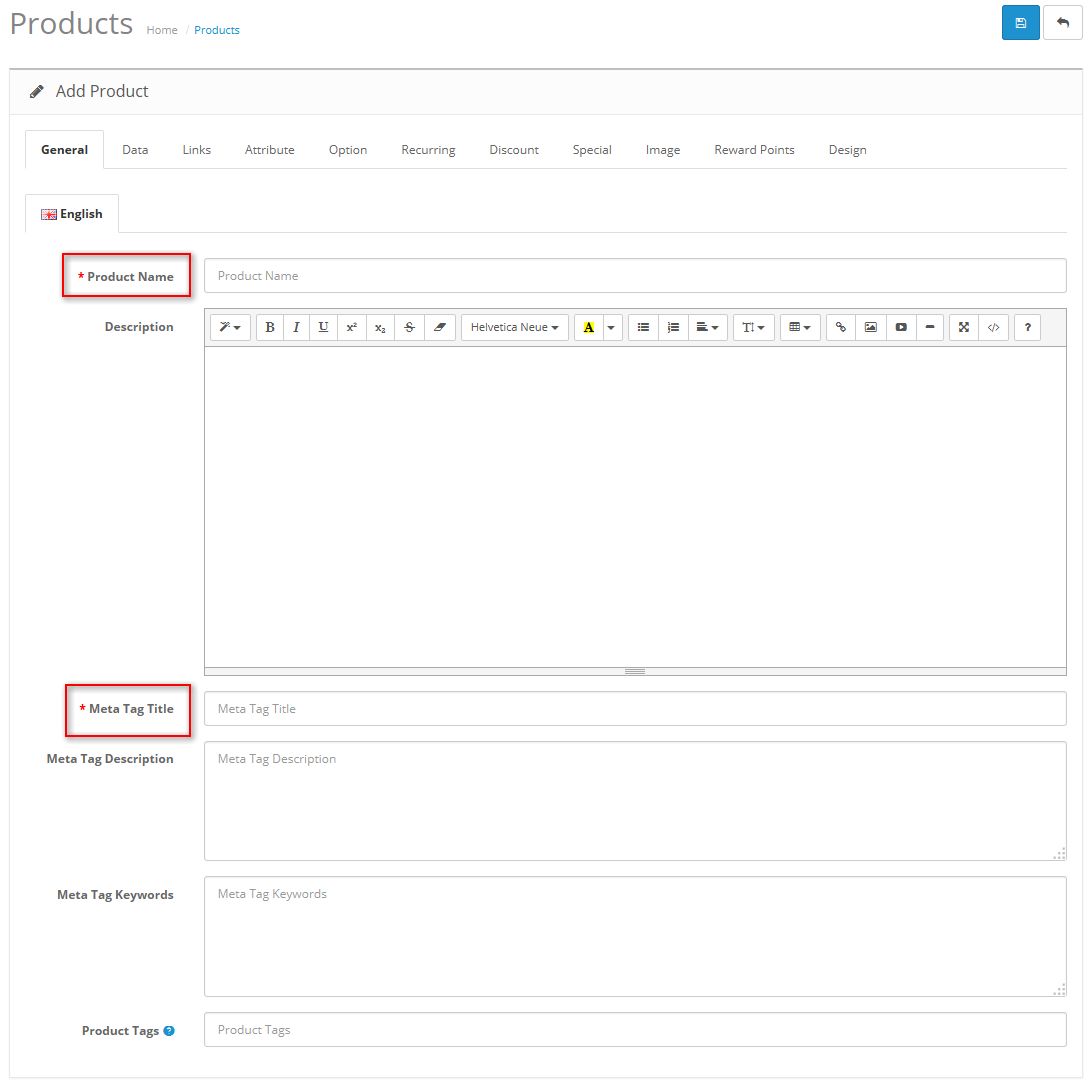
Click Save button when finish.
You can add as many products as you would like.
How to set special products
***A special price is a product's sale price. For example a product may have cost $400, but using the specials option in OpenCart you can set the price to $350. Customers can see the "old price - new price" difference.
-
Login your opencart admin
-
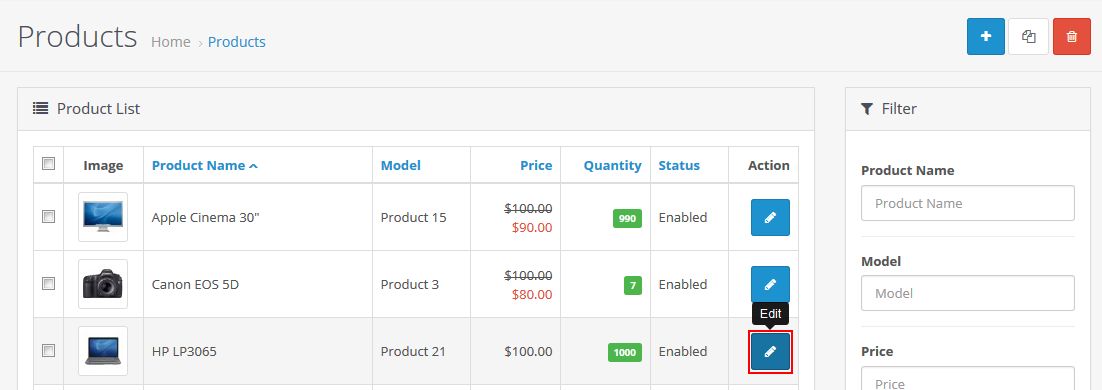
Go to Catalog -> Products
-
Search for the product you would like to set on specials. Click Edit link to edit it.
-
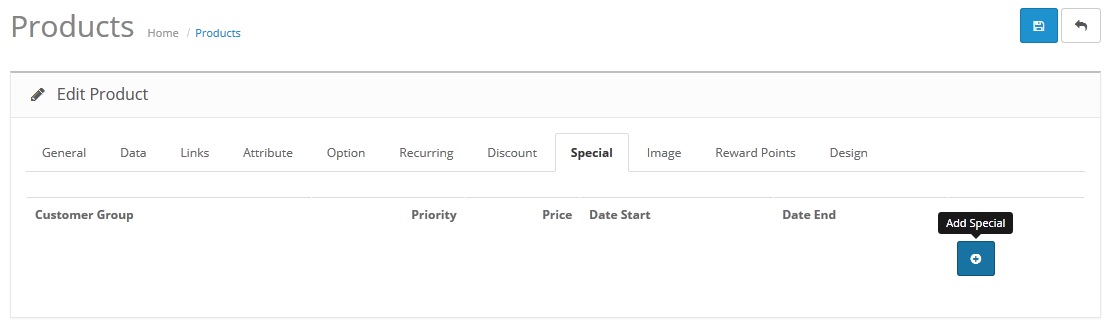
Choose Special tab and click Add Special button
-
Special prices change the value of the product price to the new special price. Specials for a customer group will display the special price only if the customer is logged in as that group.
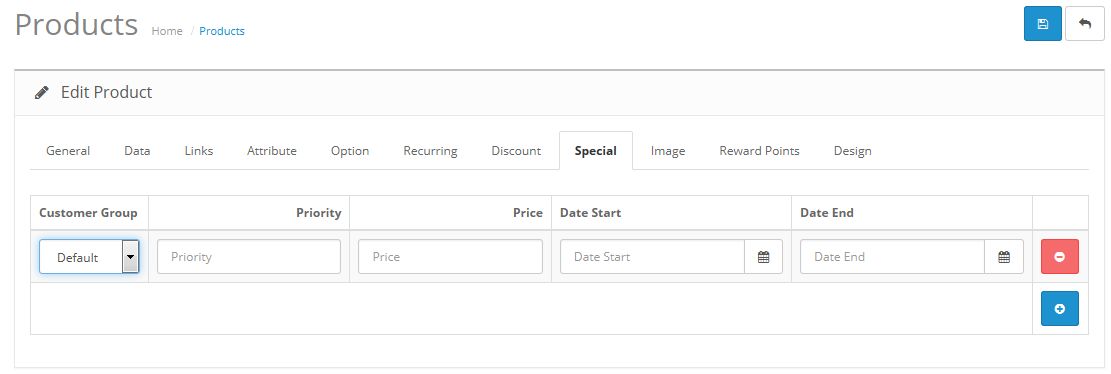
Customer Group - Optionally select a customer group you want this special to apply to.
Priority - If you will offer multiple specials and/or discounts, enter 1 for this to be applied first, 2 for this to be applied second.
Price - The price you want the customer to see.
Date Start - When you want this special price to appear.
Date End - When you want this special price to disappear.
Click Save button when finish.
How to set discount products
***Discount means that the price of a given product decreases as a customer buys more of it. In other words, a single piece may cost $30, but if you buy five pieces then each would only cost $28. The more a customer buys, the more they save.
Login your opencart admin
Go to Catalog -> Products
-
Locate the product you want to create the discount for . Click Edit link to edit it.
-
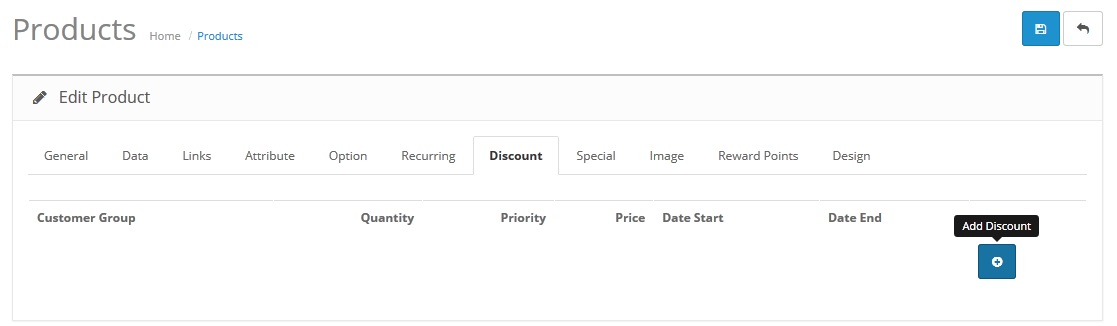
Choose Discount tab and click Add Discount button
-
We got :
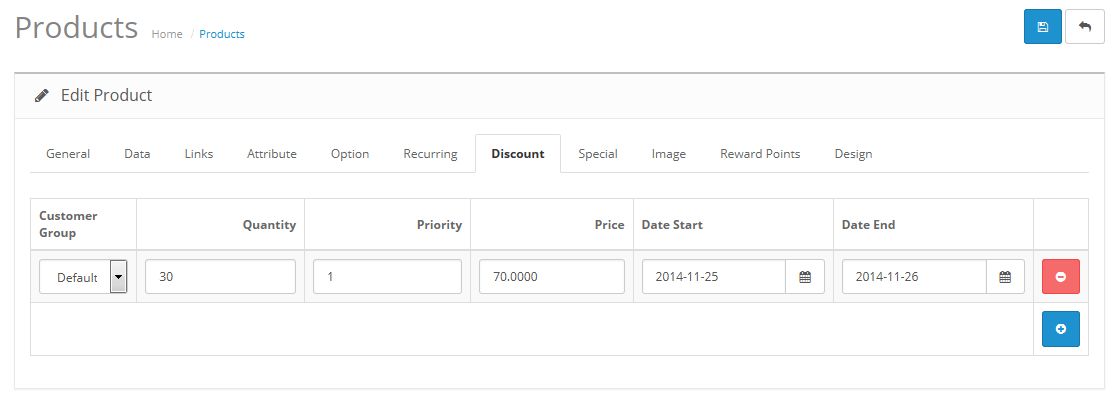
Customer Group - Optionally select a customer group you want this special to apply to.
Quantity - Set how many pieces a customer needs to purchase in order to get the discounted price.
Priority - If you will offer multiple specials and/or discounts, enter 1 for this to be applied first, 2 for this to be applied second.
Price - The price you want the customer to see.
Date Start - When you want this discount price to appear.
Date End - When you want this discount price to disappear.
Click Save button when finish.
How to set related products
Login your opencart admin
Go to Catalog -> Products
-
Locate the product you want to add related products to . Click Edit link to edit it.
-
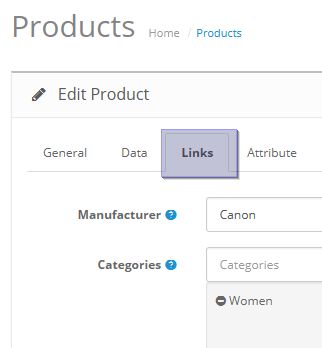
Choose Links tab and scroll down until you see the Related Products field
-
Start typing a product name in that field and OpenCart will drop down a list of products that start with whatever letters you have typed in.
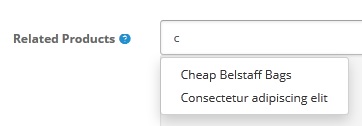
Important! If the product you are typing is not in your OpenCart products, the drop box will not appear. Make sure you are typing a product that you have in your OpenCart.
-
Click Save button when finish.
Creating Category
* See more at http://docs.opencart.com/catalog/category/ to understand about Category in Opencart.
* See more at Attributes to understand about attributes in Opencart.
* See more at Filter to learn how to add filters.